Using Windows 7 installed in a Bootcamp partition from Mac OS X simultaneously
This guide will help you set up access to your Windows 7 installation directly from Mac OS X. You can follow this simple guide without technical knowledge and get your Windows 7 Virtual Box, up and running without any hassle. What all you need to do is, “Follow the guide blindly”.
Software Required: Virtual Box 3.2.6 or later
Time Required: 30 mins
Things we will do in this guide:
- Prepare the Mac system for installation
- Configure Virtual Box for the first boot
- Install Virtual Box Guest Additions for seamless full screen usage
- Install Audio Drivers in Windows 7
- Use connected USB Devices in Windows 7
- Setup Shared Folder between Mac and Windows 7 and access it
- FAQs
- Virtual Box Errors
- Fatal: No Bootable Medium Found! System Halted.
- Windows “Blue Screen of Death”
- References
1. Prepare the Mac system for installation
Before configuring Virtual Box, we need to prepare Mac OS X to work seamlessly with Windows 7 Partition. For that, the Bootcamp drive should be unmounted every time we work with Virtual Box. Following steps will guide you to unmount the Bootcamp drive by default whenever you start your Mac OS X.
Open a Terminal window and type the following command:
$sudo vi /etc/rc.local
Password:
Enter the Admin password.
It opens rc.local file in vi editor. To make changes to the existing or newly created file, you need to type “ i “ (small i without quotes) and enter the following in two separate lines:
diskutil umount /Volumes/BOOTCAMP
sudo chmod 777 /dev/disk0s3
After that you need to press “esc” and type “ : “ (without quotes) and type “ x “ (without quotes).
Now type the following to check whether the procedure you have done is right or not:
$cat /etc/rc.local
The following output should appear:
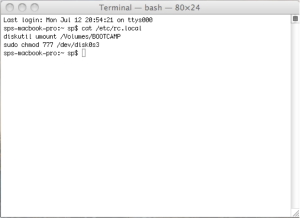
- cat command to check rc.local file

Then check whether the file has appropriate permissions by typing the following:
$ls –l /etc/rc.local
The following output should appear:
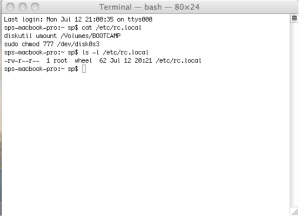
- ls -l command to check the file permissions

If the permissions are not like –rw-r-r-- , then change the permissions by typing the following commands:
$sudo chown root:wheel /etc/rc.local
$sudo chmod 644 /etc/rc.local
Restart the system
The above steps will unmount the Bootcamp drive permanently. If you don’t want to unmount the Bootcamp drive permanently, you can unmount that temporarily by typing the following commands without following any of the above steps:
- First Eject Bootcamp drive by right clicking on the drive and clicking “Eject”
- Type the following to make it workable with Virtual Box:
$sudo chmod 777 /dev/disk0s3
You have successfully completed the process of configuring your Mac OS X for the installation.
2. Configure Virtual Box for the first boot
Open Terminal Window and type following command (Make sure that the command is in a single continuous line):
$sudo VBoxManage internalcommands createrawvmdk -rawdisk /dev/disk0 -filename win7raw.vmdk -partitions 3
If you are facing problems, copy and paste the command from here:
sudo VBoxManage internalcommands createrawvmdk -rawdisk /dev/disk0 -filename win7raw.vmdk -partitions 3
It will create 2 files, “win7raw.vmdk” and “win7raw-pt.vmdk” in your root directory. After the successful creation of the files, type:
$sudo chown [admin-user-name] *.vmdk
The most difficult steps of the configuration are complete.
Now, open Virtual Box.
- Click on “New”
- Click “Continue”
- Type the name “Windows 7” and select “Microsoft Windows” and “Windows 7” if they are not selected automatically.
- Set your RAM of at least 1 GB
- Check “Boot Hard Disk” and check “Use existing hard disk”
- Click on “Browse” button
- Click “Add”
- Go to your root folder and select “win7raw.vmdk” and click “Open”
- Click “Select”. If any errors occur, please check you have completed all the procedures specified in Step 1.
- Click “Continue”
- Click “Done”
Now, you need to attach your “Windows 7” partition to this Virtual Machine you have created.
- Select your “Windows 7” Virtual Machine
- Click on “Settings”
- Click on “Storage” Tab
- Select IDE Controller
- Click “Add Hard Disk” which will directly add your “win7raw.vmdk”
- In the “Attributes” column of “Storage” tab, set “Type” as “ICH6”
- Click “Ok”
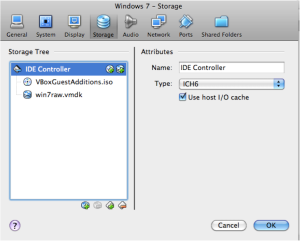
- Attach Disk Controller to Virtual Box

You have successfully configured your Virtual Box with your Windows 7 Partition.
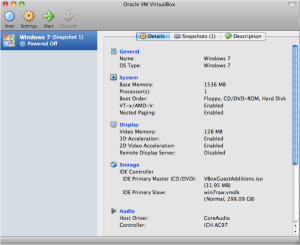
- Successfully configured Virtual Box for Windows 7

Click on “Start” to boot your “Windows 7” partition and allow it to install all the necessary drivers after login to your windows account.
Here, typically the window size is set to a resolution of 800x600. You can maximize your resolution by following the step 3.
3. Install Virtual Box Guest Additions for seamless full screen usage
Virtual Box Guest Additions are required for High Resolution Video Support, Time Synchronization, Seamless Windows, Shared Folders, Mouse Pointer Integration, Shared Clipboard and Automated Logons.
If you have already tried putting your virtual machine on full screen mode and didn’t get the resolution better than 800x600 or some standard resolution, here is the solution:
- Go to the “Applications” folder in your Mac OS X
- Locate Virtual Box Package
- Right click on the Virtual Box and click on “Show Package Contents”
- Browse through and locate “ContentsàMacOSàVBoxGuestAdditions.iso”
Now, start your “Windows 7” from Virtual Box
- Locate “Devices” in the Menu Bar of the Windows 7 Virtual Box
- Click on “CD/DVD Devices”
- You will be able to see “VBoxGuestAdditions.iso” file. If you are not able to see it, click on “More CD/DVD Images” and browse for the VBoxGuestAdditions.iso from the folder specified above.
- Now find the “VBoxGuestAdditions.iso” mounted as a CD in “My Computer” of Windows 7
- Open the drive and click on the appropriate package (32-bit and 64-bit) installer.
- After the installation, restart your Windows 7 System.
- After restart, Login to the Windows 7
- Now click on “Machine” on Virtual Box menu bar and select “Enter Fullscreen Mode” or press Host Key+F
:) You should be able to see your “Windows 7” running in full screen mode with maximum resolution.
4. Install Audio Drivers in Windows 7
I use a Mac Book Pro running on OS X 10.6.2. I faced problem with my audio driver. So I thought of helping the guys facing the same kind of problem with Windows Audio Drivers.
Following are the steps:
- Go to “Control Panel”
- Select “Device Manager”
- You can see your Audio Driver being highlighted for no drivers
- Right Click on it and select “Update Driver Software”
- Allow it search online
- It will automatically download the software and install it.
- Restart Windows 7 and you will be happy to hear the Welcome note @ Login Scree
5. Use connected USB Devices in Windows 7
If you have checked that the USB devices which you have connected to your MAC, are not accessible from Windows 7 or, if you are not able to select it from the USB Devices List (Grey Device or the device name is Grey-ed), please follow this procedure.
- Shut down your Windows 7 System
- Select Windows 7 in Virtual Box
- Click on “Settings”
- Click on “Ports” tab
- Check “Enable USB Controller” and “Enable USB 2.0 Controller”
- Click on “Add USB Filter” with all the fields set to empty. If you set all the fields empty, Windows 7 will be able to access all kind of devices, which you attach to the system.
- Click “Ok”
- Remove all the devices which you want your Windows 7 System to access
- Start Windows 7
- Make sure that your mouse is in Windows 7 Window
- Now attach the USB device.
- You can see that your USB device will be installing its drivers comfortably in the system tray.

- Adding USB Filters for connecting USB Devices in Windows 7

This completes the section of installing USB Devices
6. Setup Shared Folder between Mac and Windows 7 and access it
- Shut down your Windows 7 System
- Select Windows 7 in Virtual Box
- Click on “Settings”
- Click on “Shared Folders” tab
- Click on “Add a New Folder Definition”
- Browser for the folder which you want to share
- It will get directly added to your Machine Folders list

- Adding a Shared Folder between Mac OS X and Windows 7

You have successfully added a Shared Folder
You can access the folder by typing the following command in the "Run" dialog box:
\\vboxsvr\[folder-name]
7. FAQs
Virtual Box Errors
- Check properly whether you have unmounted Bootcamp drive
- Check whether you have given proper permissions to the Disk0s3
$sudo chmod 777 /dev/disk0s3
C. Check whether you have given appropriate ownership to the *.vmdk files
$sudo chown [admin-user-name] *.vmdk
2. Fatal:No Bootable Medium Found! System Halted.
Check whether you have attached the IDE Controller Properly in the “Settings” Menu of Virtual Box
3. Windows “Blue Screen of Death”
Check in “Settings” Menu of Virtual Box whether the “Attributes” column of “Storage” tab, set “Type” as “ICH6”
8. References
http://dashes.com/anil/2009/10/how-to-run-windows-7-under-mac-os-x-106-for-free.html
http://www.microsoft.com/windows/windows-7/
http://blog.brianguy.com/2009/11/automatically-unmount-boot-camp.html
http://bloggy.kuneri.net/2008/05/16/how-to-share-files-with-virtualbox-between-mac-and-windows/
http://forums.virtualbox.org/viewtopic.php?f=2&t=11729
http://www.virtualbox.org/ticket/495
*********End of Article**********
Excuse me for any mistakes

Thanks Viplav for your excellent and orderly account. You guided me all the way through it. Now I'd rather NOT permanently unmount disk0s3. Instead I'd like to unmount it as necessary. What nano command should I put in then? Thank you very much for your guidance.
ReplyDeleteIf you don’t want to unmount the Bootcamp drive permanently, you can unmount that temporarily by typing the following commands:
ReplyDeleteFirst Eject Bootcamp drive by right clicking on the drive and clicking “Eject”
Type the following to make it workable with Virtual Box:
$sudo chmod 777 /dev/disk0s3
Viplav - many thanks for your quick answer. Deeply appreciated!
ReplyDeleteI have entered the all the commands as listed, and after that, Bootcamp drive is not shown up each time after login, unless I remount it from Disk Utility.
Is there anyway to undo this change, i.e. I only want to do the temporary unmount as you just mentioned.
Lots of thanks again!
In the file "/etc/rc.local", check whether the comand "diskutil umount /Volumes/BOOTCAMP" is present. If it is there, delete the line. This should solve the problem.
ReplyDeleteThanks a lot Viplav!
ReplyDeleteGreat job Viplav! This is really a terrific guide. I have had no joy in accomplishing this configuration, until today!
ReplyDeleteThis works so well I want to make my windows partition larger (50/50) with the Mac Partition. No resizing with boot camp, but this guide worked so well I am happy to rebuild my windows install!
Well done.
Your guide is the most detailed instruction so far on this subject!
ReplyDeleteI would like to add few more points:
- Please explain a bit about some terminal commands.
- Not everyone has windows 7 on partition 3. This is my case because I created another partition for sharing data between Mac and Win before using Virtual box. I took me a while to change your "partition 3" to my "partition 4"
Viplav, I have problem with the size of the win7raw.vmdk. It's too big so there is a warning message "Start up disk is full". How can I reduce the size of the virtual disk?
ReplyDeleteThank,
It is not possible to re-size a bootcamp partition.
ReplyDeleteIt sounds to me like your configuration is wrong. Most likely you have a partition and a separate vmdk.
Back up the info you have on your "shared partition" remove all the partitions (except your mac osx), perform the bootcamp install, and then Viplav's procedure. Step 6 should circumvent your need for a "shared partition" but if you still want to make one, create it after the other steps.
i could not add "win7raw.vmdk" to the IDE controller as it caused an error
ReplyDeleteinstead, "win7raw.vmdk" automatically appeared in the SATA controller already
but an error occured right after i start installing saying that i need to insert installation disc and restart my computer
i complete all the previous steps without any problem though
also i'm using virtualbox 4.0.10
ReplyDeleteJohnny,
ReplyDeleteremove the VMDK from the SATA controller, and then add it as IDE/ICH6.
Initiatially the VMDK was attached as SATA and Win7 would go into Repair-mode all the time om my MacBook Pro 13" i5.
DeleteAfter changing to IDE/ICH6 win7 ran OK.
Later I changed successfully back to SATA.
Same issue.. When I try to start windows 7 I get the following.
ReplyDeleteFailed to open a session for the virtual machine Windows 7.
Failed to load VMMR0.r0 (VERR_SUPLIB_WORLD_WRITABLE).
Unknown error creating VM (VERR_SUPLIB_WORLD_WRITABLE).
> $sudo chmod 777 /dev/disk0s3
ReplyDeleteThanks for this. Helped me with installing Windows7
Check in “Settings” Menu of Virtual Box whether the “Attributes” column of “Storage” tab, set “Type” as “ICH6”
ReplyDeleteThis did not work for me; however, I selected 'PIIX4' instead of 'ICH6' and it seemed to work fine, no blue screen of death. I am running virtualbox 4.0.12, perhaps your version and mine differ when it comes to which of those 2 should be selected. Hope this helps anyone else with this issue. Your article is otherwise fantastic!
Hello,
ReplyDeleteI was attempting to use the above steps with Windows XP instead of Windows 7. I believe I followed all the steps but I get an error saying Windows could not start because of a disk hardware configuration problem and that it could not read from the selected boot disk. It said to check the boot path and hardware.
Thanks
hey. after pasting “sudo VBoxManage internalcommands createrawvmdk -rawdisk /dev/disk0 -filename win7raw.vmdk -partitions 4″ i got “sudo: VBoxManage: command not found”. should i type something else to make it work or is there other way?
ReplyDeleteCheers guys
I`m running Mac Os x 10.7.2, Windows 7 Home Premium 64bit
How did u solve this problem? Im facing the same error too..
DeleteHi,
ReplyDeleteThank you for these tips. I tried them and managed to see the startup logo of Windows 7. However, it does not fully starts: I get a text message saying that Windows couldn't make it (and it says maybe because of hardware or software change). It gives choices to start Windows normally again or with a recommended way. I tried both but I still get the same issue. Anyone got this issue? I'm on Mac OS X Lion 10.7.2 with a Macbook Pro bought this year.
Hi! Thanks for the guide!
ReplyDeleteI had the same problem as Philou; fixed it by ticking the "Enable IO APIC" option in the virtualbox settings for the windows 7 system.
Hope that helps!
MacBook Pro Early 2011 (i7 2.3GHz) 10.6.8 - same problem as Philou and Motto. Got past the black screen. Windows tries to repair and fails.
DeleteI needed to also change:
VirtualBox::Settings:System:Processor:Extended Features Enable PAE/NX
When I start my Windows7 virtual box I get a missing operating system error. All works fine in bootcamp. Any suggestions appreciated
ReplyDeleteHi SouthForty. What is most likely happening here is that you have not selected the right partition. (I had this same problem).
ReplyDeleteHeres what you should do to fix this. Open a terminal window and type: "diskutil mount disk0s3" without the ". Below that you should get something like "Volume Recovery HD on disk0s3 mounted". If this does not contain the name of your Bootcamp partition (by default:BOOTCAMP) then this is your problem.
To fix this, try augmenting the last number in the "disk0s3" command to "disk0s4". See if that has the name of the bootcamp partition, if not try "disk0s5" and so on...
When you finally find the number that works for you, completely restart the tutorial, except for wherever the number "3" appears, replace it with the number you found to work.
Hope this helps. Mobius5150.
I'm getting this error:
ReplyDeleteuser-pc:Win7iMac username$ $sudo VBoxManage internalcommands createrawvmdk -rawdisk /dev/disk0 -filename win7raw.vmdk -partitions 4
VBoxManage: error: Cannot open the raw disk '/dev/disk0': VERR_ACCESS_DENIED
VBoxManage: error: The raw disk vmdk file was not created
My bootcamp partition is on disk0s4
what should I do?
The issue was I was in the directory I had created for the new OS in the VirtualBox VMs dir. The instructions here don't tell you you have to be in your home directory to make the files.
DeleteAlso in the instructions to install the Guest Additions, they just tell you to find the .iso in the application, but don't tell you to copy it somwhere like your desktop where the Virtual Machine can find and mount it.
But other than that, I got it going! Now to figure out 3D support
I have the win7raw.vmdk file created but when I go to load it in VirtualBox I get
ReplyDeleteFailed to open the hard disk
could not open the medium
VD: error VERR_ACCESS_DENIED opening image file
Details:
Result Code:
NS_ERROR_FAILURE (0x80004005)
Component:
Medium
Interface:
IMedium {aa8167ba-df72-4738-b740-9b84377ba9f1}
Callee:
IVirtualBox {2158464a-f706-414b-a8c4-fb589dfc6b62}
If anyone has any tips that would be greatly appreciated.
Awaiting some help with >> anoackFeb 9, 2012 06:33 AM << 's Issue.
ReplyDeleteThanks for your help everyone.
VirtualBox 4.1.10 b76795
I followed this guide exactly, with the variation of the partition number 4 vs. 3. Getting error anoack mentions.
ReplyDeleteI figured it out. This site: < http://phaq.phunsites.net/2011/03/05/sharing-windows-7-between-boot-camp-and-virtualbox/ > Lists: < http://www.kevinrockwood.info/2010/04/windows7-in-osx-with-bootcamp-and-virtualbox/ > As one of the sources (third) of his information. Under that site, I found a small step that was different, that for me, made the difference.
ReplyDeleteYour step:
It will create 2 files, “win7raw.vmdk” and “win7raw-pt.vmdk” in your root directory. After the successful creation of the files, type:
$sudo chown [admin-user-name] *.vmdk
His step:
sudo chown YOUR-USER-NAME-HERE win7raw.vmdk win7raw-pt.vmdk –changes the permissions of the previously created files (Replace YOUR-USER-NAME-HERE with the current user name)
I tried your instructions 3 times, and failed 3 times.
I tried his steps once, which looked the same at a glance, but this one thing made a difference on my system. For some reason.
I have a triple booted system which i created using Bootcamp and the install disk of Backtrack 5 and i get this error:
ReplyDeleteVBoxManage: error: Two partitions start at the same place
VBoxManage: error: Cannot read the partition information from '/dev/disk0'
VBoxManage: error: The raw disk vmdk file was not created
My question is, how do i separate these partitions and create .vmdk's for both partitions (Windows 7/Bootcamp and Backtrack 5) to run in VirtualBox, without losing any data?
I get
ReplyDeleteFailed to open the hard disk /home/user/.VirtualBox/win7raw.vmdk.
The medium '/home/user/.VirtualBox/win7raw.vmdk' can't be used as the requested device type.
Nvm i got it but have new error:
ReplyDeleteFailed to open the hard disk /Users/SterlingButters/win7raw.vmdk.
The medium '/Users/SterlingButters/win7raw.vmdk' can't be used as the requested device type.
Result Code: NS_ERROR_FAILURE (0x80004005)
Component: Medium
Interface: IMedium {53f9cc0c-e0fd-40a5-a404-a7a5272082cd}
Callee: IVirtualBox {c28be65f-1a8f-43b4-81f1-eb60cb516e66}
MBP early 2011, MacOS10.6.8 server, VirtualBox4.2.2, Windows7. Mostly work but still a few bugs.
ReplyDeleteFn key support required upgrade of BootCamp to 3.3, from Apple Web Site. The BootCampAssistant didn't download this version for me. All works correctly in BootCamp. In VirtualBox, can't open BootCampControlPanel due to permission problem
Partial fix here:
http://apple.stackexchange.com/questions/59048/macbook-pro-retina-and-windows-8/59132#59132
Now under VirtualBox, the control panel only has brightness and it doesn't work. Other settings missing. Still looking for answer.....presume there is a registry hack....
USB is broken if more than one CPU is selected. VB bug #7462. https://www.virtualbox.org/ticket/7462
ReplyDeleteI ran into a snag. My BOOTCAMP is on disk0s4. When I went to tell VirtualBox to use the win7raw.vmdk file as a hard disk I got a permission error. I fixed this by deleting the .vmdk files and recreating them with -partitions 4. You might want to mention this.
ReplyDeleteThanks for a great guide! I lost my Parallels license in the infamous Mountain Lion upgrade. Getting things going again with VirtualBox saved me $50.
This comment has been removed by the author.
ReplyDeleteThanks Vipal and others for the great writeup and Q&A. I was able to create Windows 8 VM and got it right in the first try. I have one question though. Not sure if others ran into the same problem. My windows 8 is prompting me to reactivate when I access it through VM. I had purchased an active license key for Windows 8 that I used up when I first installed Win 8 using boot camp. But then when i access Windows through VM, it tells me that my product key is already used and prompts me to enter a different activation key. Is there a way to get around this or is this a Windows problem?
ReplyDeleteAny help is greatly appreciated!
Nice instructions -- You should point out in the first step that if you are running Lion or Mountain Lion, the chance of your disk0s3 being your recovery partition is high. If you ummount this partition permanantly, you will not be able to reboot your system into OSX. Why you ask? It will disable the ability to load Startup Manager or boot picker as it is often called. Very frustrating even for a MAC tech, either that or I am very niave. You will not be able to boot off a CD, your boot partition HD, or even a flash drive. Unfortunatley it is not an easy fix. If you have problems with this, send me an email: tg at win4win.com. You can also contact me at http://www.expertretail.com
ReplyDeleteAwesome Tutorial!!!!! =D Thank you!
ReplyDeleteHello there!
ReplyDeleteToday I tried to start the virtual Bootcamp Windows 7 machine but this time it didn't started and showed the following error:
Failed to open a session for the virtual machine Windows 7.
Do I have to follow the steps each time I want to use the machine? Should it be ready to use each time?
Yesterday it was working perfectly but today it won't start.
I'm frustrated!
Can somebody help me here.
Thanks in advance!
Hi, I keep getting Fatal: INT18 error.. any ideas? I can start it up properly from bootcamp but it just cant run on virtualbox.
ReplyDeleteI'm running Windows 8 64 Bit on Mac OS X 10.8.4
Hi,
ReplyDeleteAny advice on getting Windows 8 working? I get the "No boot device found" error. Under storage and settings I have it setup as described except I can not set it to ICH6 I can only set it to ACHI.
Thanks.
Hi great article!
ReplyDeleteFor those having the VERR_ACCESS_DENIED problem at Step 2.5
Check that the <3> in the command below matches your bootcamp partition number
< sudo VBoxManage internalcommands createrawvmdk -rawdisk /dev/disk0 -filename win7raw.vmdk -partitions 3 >
i.e my partition was disk0s4 so I had to change the above to <...-partitions 3 >
Surely you mean you had to change it to: … -partitions 4
Deletemine is also located on partition 4, but even after creating the new raw.vmdk file with the 4th partition, virtualbox con't open it. anyone gotten past this?
Deletedo you have to install virtual box first before you do this?
ReplyDeleteThis does not seem to work under Mavericks (10.9). Starting the VM gives me this virtualized error: “Error loading operating system”
ReplyDeleteGot the same problem, have you figure out how to make it work?
DeleteHi all,
ReplyDeleteI feel like I'm having a common problem. Stuck around step 2.5
Trying to create a new VirtualBox but am getting an error message when I select my created win7raw.vmdk file.
My partition is disk0s4 so in terminal my sudo command was:
sudo VBoxManage internalcommands createrawvmdk -rawdisk /dev/disk0 -filename win7raw.vmdk -partitions 4
Now when I select the file in Virtual box I receive the following error message:
Failed to open the hard disk file /Users/Jonfen/win7raw.vmdk.
Permission problem accessing the file for the medium '/Users/Jonfen/win7raw.vmdk' (VERR_ACCESS_DENIED).
VBOX_E_OBJECT_NOT_FOUND
Has anyone received this error message? Anyone gotten past this?
Much thanks
FIGURED IT OUT.... for anyone with the same problem, you must also change ownership of the win7raw-pk.vmdk file
Delete$sudo chown user-name *.vmdk
Doing this I get:
Delete"chown: win8raw-pt.vmdk: Operation not permitted
chown: win8raw.vmdk: Operation not permitted"
Any ideas?
This comment has been removed by the author.
ReplyDeleteI installed WLM 8.5 but can't seem to run WLM after the installation. An error will pop up. Any idea how to solve this? visit more info Windows live mail technical support also Call +1-800-231-4635 (Toll Free).
ReplyDeleteThis comment has been removed by a blog administrator.
ReplyDeleteThis comment has been removed by a blog administrator.
ReplyDeleteThanks Viplav for this guide. With my installation, I had not to set the IDE controller to the ICH6 type but had to leave the default attribute to PIIX4. I had also to change permissions to the .vmdk file before creating the VM.
ReplyDeleteI have a question : is it possible to use VirtualBox to restore a Windows Bootcamp partition ? I asked this question on VirtualBox forum but had no answers yet. See : https://forums.virtualbox.org/viewtopic.php?f=8&t=65576
Thanks
ls –l /etc/rc.local
ReplyDeletels: –l: No such file or directory
Any ideas?
The following works...
cat /etc/rc.local
diskutil umount /Volumes/BOOTCAMP
sudo chmod 777 /dev/disk0s4
I tried changing permissions which appears to work. BUt the drive is still mounted on reboot.
Thanks Vivplav & all above for this.
ReplyDeleteBut before I proceed I need to know. Does this method link the Bootcamp Windows machine with the VirtualBox (VB) machine?
Or does this method simply clone the current state of Bootcamp into a new (2nd) and independent VB virtual machine?
Will future changes made to files in Win8 (in my case) booted as the VB machine be reflected in the "natively"-booted (Option key on StartUp) Bootcamp Windows machine? For some apps (e.g. Adobe Creative) I need to be able to boot into Bootcamp at other times I need the convenience of a virtual machine.
My old version of VMWare Fusion allowed that setup of the Bootcamp partition as both "native" & the virtual disc - one & the same. I'd love to be able to do that using the fantastic VirtualBox.
All the best, Glen
I have the same question as "glen in oz". Would be nice to understand before doing all this work first and potentially having to redo it.
ReplyDeleteThis creates a VM that uses the Bootcamp partition instead of a virtual hard drive. (Glen in Oz)
ReplyDeleteBTW, careful with the difference between – and -, when copying lines from the article. That's the problem for Mark Francis.
Now, I would really appreciate if I could have the faux virtual drive files in another folder, instead of the home folder. Any idea? :P
I'm not sure how, but I did it. Great!
DeleteIs there any problems with licensing other products like MS Office using the VM ?
ReplyDeleteWhy?
ReplyDeleteNo for me no problems , but viplay answer anymore?
Answer for what?
DeletePardon viplay, i mistake answer was to Kay Reiniche.
DeleteReally i thank you.
"Kai ReinickeJanuary 31, 2016 at 5:22 AM
Is there any problems with licensing other products like MS Office using the VM ?"
This comment has been removed by a blog administrator.
ReplyDeleteThe first part of Step 2, where I have to input
ReplyDelete$sudo VBoxManage internalcommands createrawvmdk -rawdisk /dev/disk0 -filename win7raw.vmdk -partitions 3
is not working for me, I get the following error:
VBoxManage: error: VMDK: could not open raw partition file '/dev/disk0s3'
Help?
Thanks BrunoMCP, that's very clear.
ReplyDeleteNice information
ReplyDeleteAmazing post!! Thenks a lot, worked perfectly for me. Only thing I would add is check what partition BOOTCAMP is in so that you don't have to do the whole thing twice (like I did :))
ReplyDelete*Thanks.
Delete